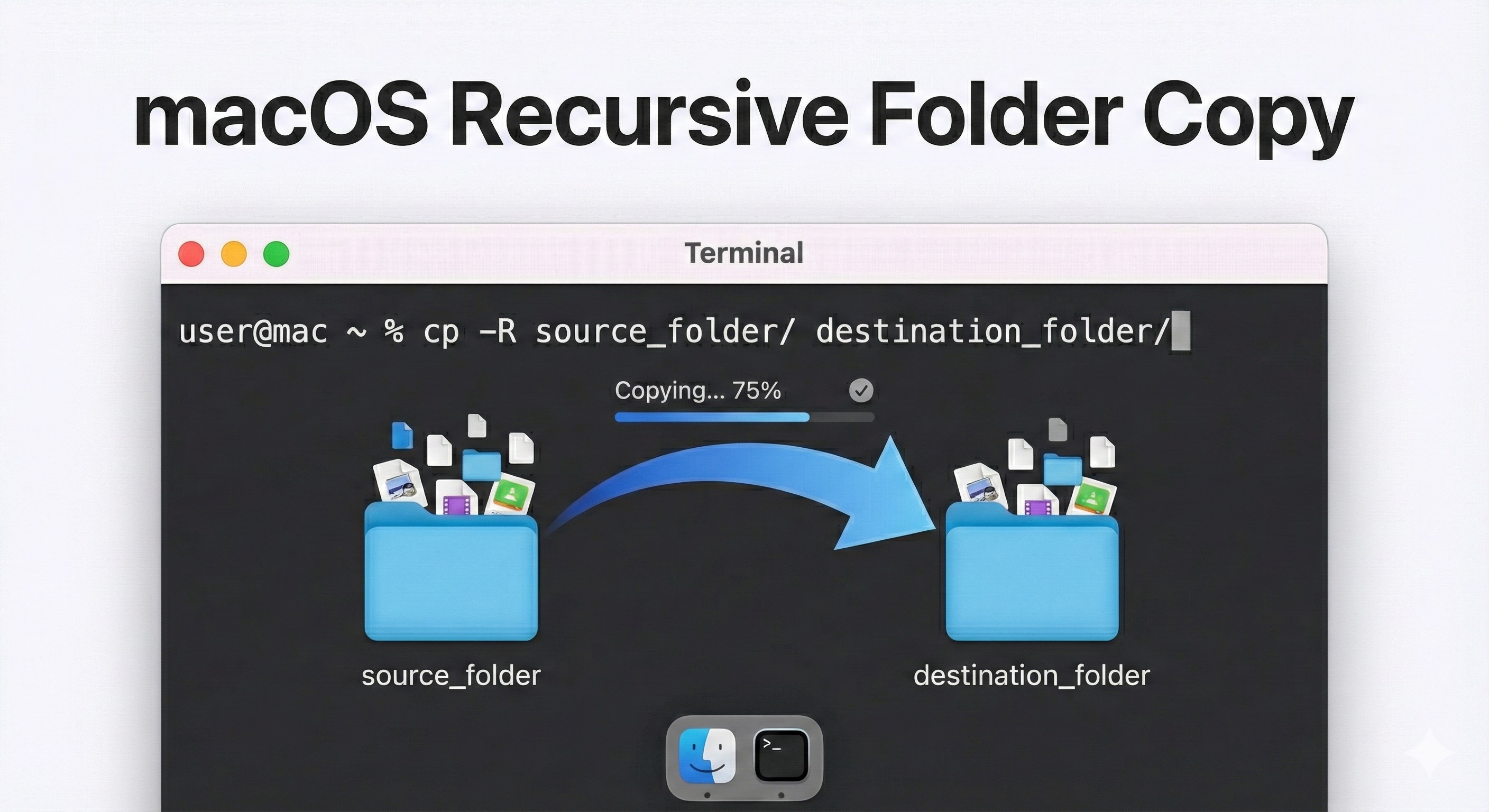
Copying files and folders is a very common task while working on macOS. Whether you are managing project files, backing up data, or deploying applications, understanding how the cp command works is essential.
What Is the Copy (cp) Command in macOS?
The cp command is used to copy files from a source location to a destination location in macOS.
If you use the cp command without any additional arguments, it can only copy individual files—not directories.
cp <sourceFile> <destinationDirectory>
# Copies only a single file
Trying to copy a directory without the correct flag will result in an error.
What Is Recursive Copy?
Recursive copy means copying a directory along with all its files and subdirectories.
In macOS, recursive copy is achieved by using the -R flag with the cp command.
The -R option tells macOS to copy everything inside the folder, including nested directories and files.
How to Copy a Complete Directory Using Recursive Copy
Use the following command to copy an entire directory and its contents:
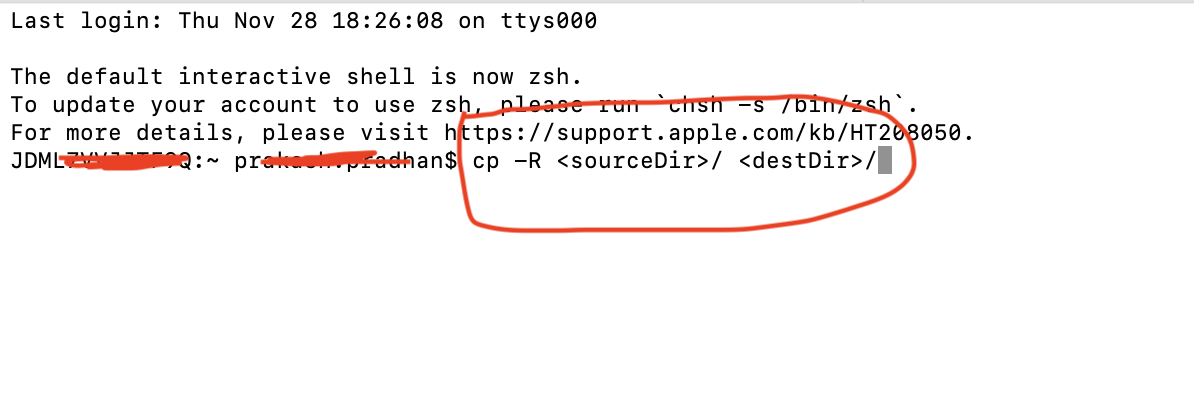
cp -R <sourceDir> <destDir>
This command will copy the source directory itself and all of its contents into the destination directory.
Important: Avoid adding a trailing slash (/) if you want the directory itself to be copied.
Trailing Slash Behavior in Recursive Copy
If you include a trailing slash after the source directory:
cp -R <sourceDir>/ <destDir>
Only the contents of sourceDir will be copied—not the directory itself.
To include the directory name, remove the trailing slash:
cp -R <sourceDir> <destDir>
"cp: Permission Denied" Error on macOS
Sometimes while copying files or directories, you may encounter a "Permission denied" error.
This happens when you do not have sufficient permissions to read the source or write to the destination.
You can update permissions using the chmod command:
chmod 755 fileName
Why not use recursive chmod?
Giving full permissions recursively can be a security risk. It is safer to update permissions only on the required file or directory.
Understanding chmod 755
Permission groups:
755 means:
- Owner: Read + Write + Execute (7)
- Group: Read + Execute (5)
- Others: Read + Execute (5)
How to Move Files in macOS
To move files or folders from one location to another, macOS provides the mv command.
Example: Move a file from Downloads to Documents:
mv ~/Downloads/file.txt ~/Documents/myfiles/file.txt
You can also rename the file while moving it:
mv ~/Downloads/file.txt ~/Documents/Work/newName.txt
Best Practices
- Always double-check source and destination paths
- Use
-R only when copying directories
- Avoid recursive permission changes unless necessary
- Use
mv instead of cp when you want to relocate files
Mastering these commands will help you manage files efficiently on macOS.
Prakash Pradhan
Sr. Software Engineer
Senior Software Engineer with 10+ years of experience in designing and scaling distributed systems and full-stack applications. Experts in optimizing system performance, and delivering high-impact technical solutions across the entire software development lifecycle.









Comments
No comments yet.